How to add Apple's new Liquid Glass icons to applications
Without Xcode, almost.
Overview
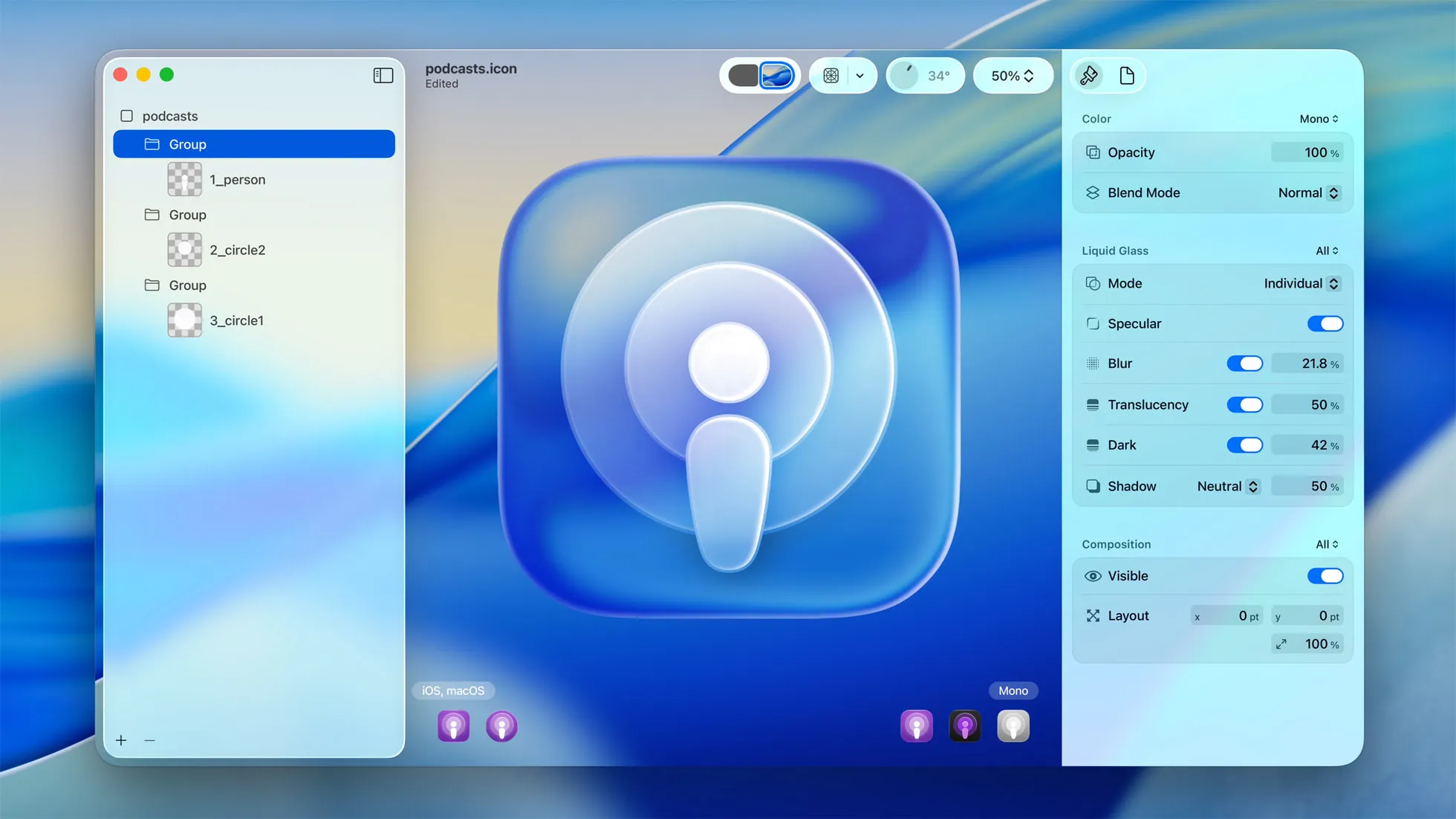
If you have tried Apple’s new
Icon Composer app, you may have
noticed that you can only export icons as PNG, in one specific size. Typically
you would want to export icons as a *.icns file containing multiple different
resolutions of the same image.
Liquid Glass icons however are not based on fixed resolution bitmap images.
Instead they encourage you to use scalable SVG assets to build your icon, and
those same scalable assets are when end up in applications built with Xcode 26
using the new *.icon format that Icon Composer saves to.
I ended up on a deep-dive yesterday as part of making some Liquid Glass icons for Emacs: github.com/jimeh/emacs-liquid-glass-icons
The correct way to use icons created with Icon Composer, is to drop the *.icon
document into your Xcode project using Xcode 26, and then build the app. It will
create a normal bitmap based *.icns icon file for compatibility with macOS 15
and earlier. But it will also embed the full features of the Liquid Glass icon
into the application as well for macOS 26 and later.
For reference, the full list Liquid Glass features are:
- Separate light and dark icon designs.
- See-through “clear” glass styles, also in light and dark designs.
- User-selected color tinted icon designs.
- Automatically adapts the default light design to the circular design for watchOS.
Internals
Xcode embeds the Liquid Glass icons by bundling their separate resources into a
Assets.car file placed under the Contents/Resources directory of built
applications. It then sets CFBundleIconName in Contents/Info.plist to point
at the named icon resource in Assets.car, this is an example from my Emacs LG
Icons project:
<key>CFBundleIconName</key>
<string>EmacsLG1</string>
You can inspect the list of assets within the Assets.car file with
assetutil:
xcrun assetutil --info '<path/to/Assets.car>'This will print the data in JSON format, as a list of assets within the file.
You’ll notice that each of the layers, colors, and other individual items from
within your *.icon document. For example, here’s the one of the Icon Image
assets from the Assets.car file in my Emacs LG project:
{
  "AssetType": "Icon Image",
  "BitsPerComponent": 8,
  "ColorModel": "RGB",
  "Colorspace": "srgb",
  "Compression": "lzfse",
  "Encoding": "ARGB",
  "Icon Index": 1,
  "Name": "EmacsLG1",
  "NameIdentifier": 15594,
  "Opaque": false,
  "PixelHeight": 1024,
  "PixelWidth": 1024,
  "RenditionName": "EmacsLG1_light.png",
  "Scale": 1,
  "SHA1Digest": "DC92383D751D5A42B24271D32C6414E6EECEDDFEA8BAD8DD6D004BC111DA87E5",
  "SizeOnDisk": 186738
}
Using Xcode
If your application is built using Xcode, the process is relatively straight
forward. You simply drag the *.icon document into your Xcode project, and
under the build targets “App Icon” option, set it to the name of your *.icon
document.
For example, if it’s called MyIcon-v42.icon, you would set App Icon to
MyIcon-v42.
When the application is built, you will get a Contents/Resources/Assets.car
that contains the icon resources, and CFBundleIconName will be set to
MyIcon-v42. This is all that’s needed for macOS 26 to render the new Liquid
Glass icon.
If you include multiple *.icon documents in the Xcode project, they will all
be included in the Assets.car file, regardless of what you’ve set the App Icon
option to.
Not Using Xcode
If your application does not use Xcode for its build process, you can manually
add a Assets.car file and set CFBundleIconName in Contents/Info.plist.
Creating that Assets.car file however, does currently to my knowledge, require
Xcode 26 and an Xcode project. So despite the heading above, you will need to
use Xcode.
But all you need a empty macOS app project, which if you pick the simplest macOS
app option in Xcode, will yield an empty app with a hello world window. Simply
drag your *.icon document into that project, and run the app.
This will build the application and launch it. If you then cmd+click on the app
in the Dock, it will reveal it in Finder, from where you can right click > Show
Package Contents, and grab the Assets.car with your Liquid Glass icon embedded
in it.
Not ideal, but it works, and I’m sure better methods will be discovered or maybe even provided by Apple themselves.
If you want to see an example dummy Xcode application for this, have a look at the EmacsLG directory in my Emacs LG Icons project.